Top 10 Features That Will Improve Your Mobile Experience on the Galaxy S10
on June 25, 2019
With the continuous evolution of smartphone technology, discovering fresh new features on the latest device can seem nearly impossible. The Galaxy S10 line bucks that trend. Besides the device’s marquee innovations (Wireless PowerShare, Ultrasonic Fingerprint Scanner and Ultra Wide Camera lens to name a few), the latest in the Galaxy line boasts many lesser-known handy features. Here, Galaxy S10 developers select ten advanced features sure to help users live more efficiently.
1. Jump to Your Favorite Apps Securely with Lock Screen ‘App Shortcuts’
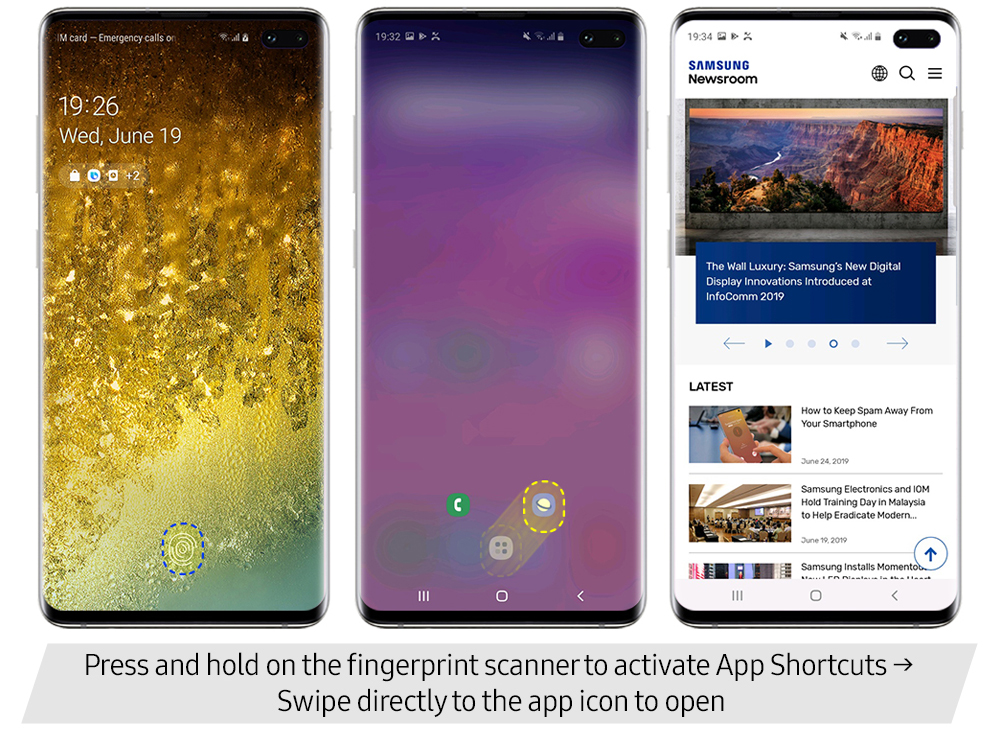
Security meets convenience in the Galaxy S10 line’s lock screen app shortcuts. With this enhanced feature you can secure the apps pinned to your lock screen with a handy ‘finger scan and swipe’ motion. Simply scan your fingerprint as usual, then swipe up from the fingerprint sensor to an app icon to open it. In situations where you need to access your most-used apps quickly, snap straight to them from the lock screen without compromising on security.
The Galaxy S10’s in-display Ultrasonic Fingerprint Scanner offers vault-like security with its FIDO Alliance-certified anti-spoofing technology. Now, your fingerprint scanner is not only a top-notch security measure, but a platform to launch your favorite apps quickly and securely.
2. Streamline Your Life with ‘Bixby Routines’

Imagine; as soon as you get into your car in the morning, music fills the space and Bixby turns on voice controls, all without you having to touch a thing. Then, as you arrive at work, vibration mode is activated and Wi-Fi disconnects. As your day goes on, your smart assistant moves seamlessly through various other pre-arranged routines, ensuring that your device is always the perfect complement to where you are and what you’re doing. What’s more, once you’ve set a few routines manually, Bixby learns from your habits and suggests new routines that it thinks will suit you. There’s no need to be constantly taking your phone out to fiddle with settings when you’ve got ‘Bixby Routines’ to take care of the little things.

Setting up manual routines is easy too. If you’re taking a walk, set a routine so that music plays as soon as you connect your headphones, then have your phone activate Wi-Fi and open YouTube as you arrive back home. Playing a game? Set a routine so that you enter ‘Do not disturb’ mode upon opening the game, and notifications don’t distract you.
The list of conditions that can be programmed to trigger settings adjustments and new actions is endless. And with ‘Bixby Routines’, the more routines you set, the easier life becomes.
3. Keep a Hand Free with ‘One-handed Mode’

Have you ever been holding something important in one hand, and trying to use your phone with the other? How many of us have been in the middle of cooking, and when we go to check the recipe on our phones only one of our hands is clean? With the Galaxy S10 line’s edge-to-edge screen, reaching up to pull down the notifications bar or interact with other features near the top of the screen can require regripping the phone or using your other hand. But no more, with the Galaxy S10’s optimized ‘One-handed mode’.
This feature is easily activated with either a quick swipe up from the corner of the screen (with ‘Gesture Controls’ enabled), or a triple-tap of the home key. Once turned on, the feature brings up a miniature version of your screen that puts even the features right at the top of the display well within reach. After using one-handed mode to navigate to the feature you want to use, simply tap the black area next to the downsized screen to snap your display up to full size again.
4. Stretch Your Screen with ‘Gesture Controls’

Want to get the most out of your edge-to-edge AMOLED display? On the Galaxy S10 line, enabling ‘Full-screen gestures’ will remove the navigation bar at the bottom of your screen, and allow you to perform the same actions with simple swipes up from the left, right and center spots at the bottom of your screen. Prefer a different orientation for the swipe spots? Customize the layout and swap the positions for the ‘back’ and ‘recent apps’ swipe positions. The central swipe spot remains the ‘home’ option.
Smooth and intuitive, the Galaxy S10 line’s complete gesture control system allows for the removal of navigation buttons that take up your screen space. Three minimal grey lines are visible at the very bottom of the screen to avoid any confusion over swipe positions. Enabling gesture controls lets you take full advantage of your screen real estate and provides a glimpse into a truly button-less future.
5. Take a Smart Break with ‘Temporary Mute’

In a world where ‘digital detoxes’ are becoming commonplace, more and more users are making use of their devices’ ‘Do not disturb’ function. This feature mutes all calls, alerts and media (unless select exemptions are put into place) until the user chooses to turn it back off again.
But sometimes, users who have entered ‘Do not disturb’ mode when heading into a meeting or going to sleep risk missing important alerts if they forget to turn alerts back on. Enter, Samsung’s new ‘Temporary mute’ feature, which allows users to choose, down to the minute, how long their phone will remain on mute for. After they get out of their meetings or wake up in the morning, users’ devices automatically switch back to previous sound modes so that they don’t miss any important alerts.
6. Make Your Power Use ‘Smart’ with ‘Adaptive Power Saving’

With the Galaxy S10 line’s ‘Adaptive power saving’ mode, your phone will adjust battery settings throughout the day and maximize your battery life without you having to lift a finger. Based on Samsung’s AI technology, ‘Adaptive power saving’ studies your usage patterns and keeps frequently used apps running while preventing unused ones from consuming battery life in the background.
In high-usage periods where users are watching a lot of videos, playing games, or taking sudden trips that require them to use their phones a lot, the device will automatically enter power saving mode to extend power-on time. Users don’t always have time to monitor battery life and change their settings accordingly, but with ‘Adaptive power saving’ your phone has it covered!
7. Let ‘Shot Suggestion’ Guide You to Stunning Pictures

Utilizing machine learning gleaned from the analysis of more than 100 million photos, the Galaxy S10 line’s ‘Shot suggestion’ feature helps you take pictures like a pro. Once you turn the feature on, just follow the visual prompts on the screen and watch your ‘best shot’ fall effortlessly into place.
‘Shot suggestion’ is ideal for when you want to show a single person or place in a lot of different lights, as the AI suggests a varied range of compositional styles. Especially helpful for nature and landscape shots, ‘Shot suggestion’ ensures the horizon is level, while helping you improve your proportions and positioning. With the AI assistant, finding the perfect composition for your photos is a snap!
8. Compose Visual Media like a Pro with ‘Grid Lines’

The key when composing a shot from a ‘bird’s eye’ angle – for instance when taking photos of food –is to ensure the camera is held completely level.
The ‘Grid lines’ feature on the Galaxy S10 line helps you produce well-balanced bird’s eye shots. After the feature is turned on in settings, a levelling guide will appear in the middle of the screen to make sure you’re holding the phone perfectly flat. Simply align the circle in the center of the screen with the guide, and voila! Even a beginner can take well-composed bird’s eye shots every time.
The Galaxy S10 line’s grid mode is a lifesaver for vloggers too, as it helps ensure that videos taken on a selfie stick, or similar peripheral, are steady, with the subject well-centered. Pair the Galaxy S10’s ‘3X3 Grid’ view with the camera’s other smart optimization features and capture media that will make people say ‘wow’!
9. Let AI Touch Up Your Pictures with the Photo Editor’s ‘Style’ Features

Did you know you can now let AI edit your photos for you? First applied on the Galaxy S10 line, the ‘Style’ feature uses GAN deep learning to intelligently analyze your photo and ensure that the subject is distinguished from the background, while employing various effects including ‘Color Pencil’, ‘Comic’, ‘Watercolor’ and ‘Pastel’. These vivid effects are utilized in different ways for every individual picture, and really make the image look as though it was originally created in whichever medium you select.
All of these features are included in the Galaxy S10’s default ‘Gallery’ app, allowing users to easily add effects to their photos and removing the need to install separate apps. Simply select a photo in your gallery, click on the pencil icon at the bottom of the screen and select ‘Style’ from the ‘more options’ menu in the top right of the screen. Distinct from preset filters, now AI deep learning can uniquely apply its effects to best match your picture.
10. Animate Yourself with ‘Mini Motion AR Emoji’
The Galaxy S10 line offers an enhanced ‘AR Emoji’ experience with its new ‘Mini Motion’ feature. The upgraded capability employs advanced motion tracking technology to allow users to capture full-body movements and see them replicated by their avatar in real-time. With enhanced character design and naturalized movements and expressions, now your avatar can do whatever you can!
With streamlined avatar content creation, the Galaxy S10 line’s ‘Mini Motion’ feature makes life easier for content creators, and can even provide a dance partner for the kids to boogie along with. With constantly evolving motion tracking technology and the ability to detect even the smallest facial changes, ‘Mini Motion’ offers an exciting glimpse into a whole new world of personalized motion tracking.
- Adaptive Power Saving Mode
- App Shortcuts
- AR Emoji
- Bixby Routines
- Galaxy
- Galaxy S10
- Mini Motion
- Shot Suggestion
For any issues related to customer service, please go to Customer Support pagefor assistance.
For media inquiries, please click Media Contactto move to the form.


